
 This page shows the installation of Oracle Grid Infrastructure 11.2.0.4 which I performed as part of the Oracle Linux 6.7 with Oracle 11.2.0.4 RAC installation cookbook.
First of all we need to run the installer, making sure to unset any Oracle environment variables which might interfere with the installation process (to be honest I should also check the PATH environment variable here but I happen to know it’s not got any Oracle stuff in it):
[oracle@dbserver01 ~]$ unset ORACLE_HOME ORACLE_SID LD_LIBRARY_PATH
[oracle@dbserver01 ~]$ Install/11204/grid/runInstaller
Starting Oracle Universal Installer...

Checking Temp space: must be greater than 120 MB.   Actual 44626 MB    Passed
Checking swap space: must be greater than 150 MB.   Actual 4095 MB    Passed
Checking monitor: must be configured to display at least 256 colors.    Actual 16777216    Passed
Preparing to launch Oracle Universal Installer from /tmp/OraInstall2016-04-07_02-55-10PM. Please wait ...
Having run the installer, we start by skipping the software updates:

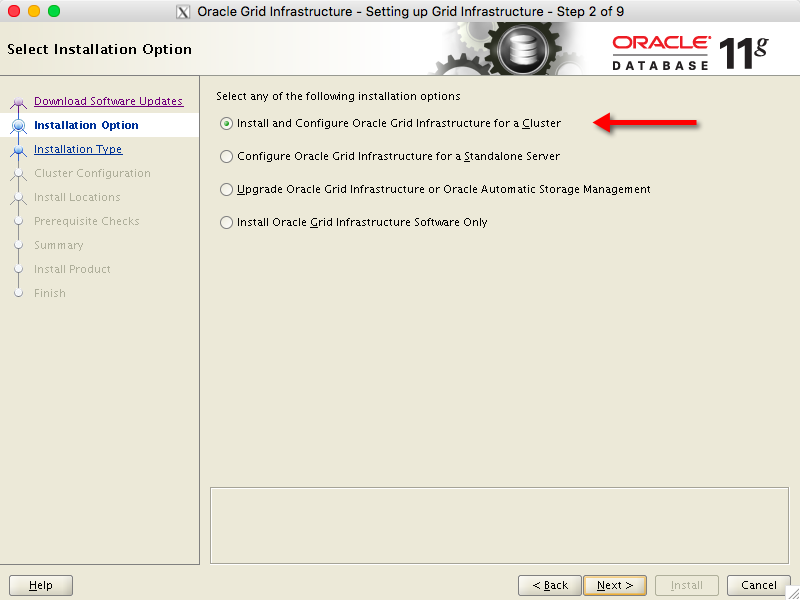
We then choose the option to Install and Configure Oracle Grid Infrastructure for a Cluster:
At the Specify Cluster Configuration screen we add the SCAN Name of dbscan.local and then click on the Add button to add the second node:

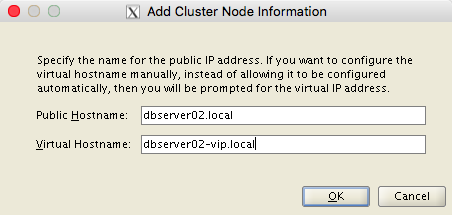
This brings up the Add Cluster Node Information box, in which we can add dbserver02.local with its virtual IP address of dbserver02-vip.local:
Clicking OK takes us back to the Specify Cluster Configuration screen again. If not already configured, it’s time to setup the SSH connectivity. Clicking on the SSH Connectivity button brings up the option to add the OS Password for the oracle user, after which we click Setup:

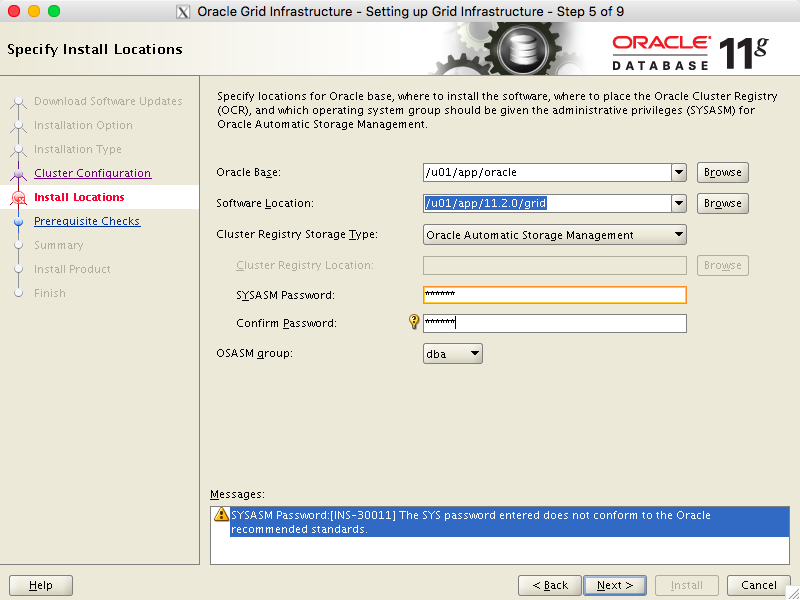
Once SSH has been configured we can move to the next screen, which allows us to Specify Install Locations. The Oracle Base location defaults to /u01/app/oracle but I’ve had to override the Software Location to /u01/app/11.2.0/grid. I’ve also chosen a password for the SYSASM user and set the OSASM group to be dba:
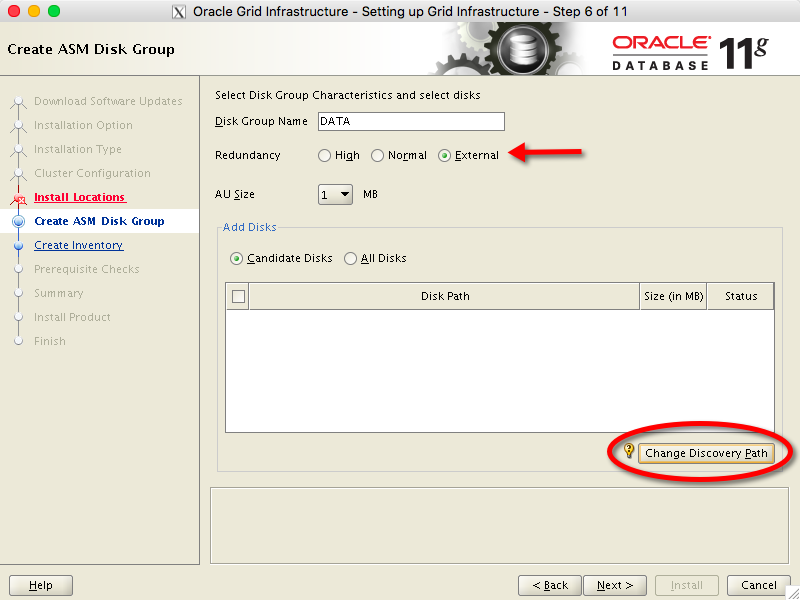
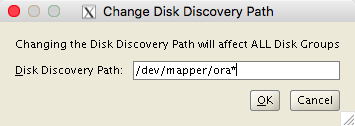
Next we need to configure the ASM disk devices. My initial ASM diskgroup defaults to DATA but I need to set the Redundancy to EXTERNAL because I’m using an All Flash Array which has built in redundancy. None of the devices I’ve allocated will initially show up because I need to modify the ASM_DISKSTRING parameter. I do this by clicking on the Change Discovery Path button:
I configured my LUNs with names such as /dev/mapper/oradata* and /dev/mapper/orareco* so I’ll set the Disk Discovery Path value to /dev/mapper/ora* and click OK to return to the previous screen:
Now I can see my devices in the Add Disks box. I’ll select all eight of the oradata* devices to place into the +DATA diskgroup, leaving behind the two orareco* devices for use later on when I configure the +RECO diskgroup:

The Perform Prerequisite Checks screen complains that I don’t have enough swap space. However, I disagree – so I’m going to override it by clicking on the Ignore All checkbox and then clicking Next:

Now we’re good to go. Here’s the Summary screen, on which I will click the Install button:

After some time the installer asks me to Execute Configuration Scripts on both nodes as the root user:
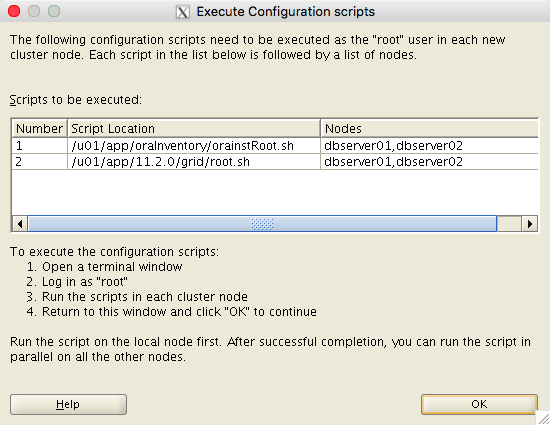
So first I’ll run the orainstRoot.sh script on each of my servers in turn, starting with dbserver01:
[root@dbserver01 ~]# sh /u01/app/oraInventory/orainstRoot.sh
Changing permissions of /u01/app/oraInventory.
Adding read,write permissions for group.
Removing read,write,execute permissions for world.

Changing groupname of /u01/app/oraInventory to oinstall.
The execution of the script is complete.
The output from dbserver02 is identical so I won’t repeat it here.
Now I’ll run the root.sh script on dbserver01:
[root@dbserver01 ~]# sh /u01/app/11.2.0/grid/root.sh
Performing root user operation for Oracle 11g

The following environment variables are set as:
    ORACLE_OWNER= oracle
    ORACLE_HOME=  /u01/app/11.2.0/grid

Enter the full pathname of the local bin directory: [/usr/local/bin]:
   Copying dbhome to /usr/local/bin ...
   Copying oraenv to /usr/local/bin ...
   Copying coraenv to /usr/local/bin ...


Creating /etc/oratab file...
Entries will be added to the /etc/oratab file as needed by
Database Configuration Assistant when a database is created
Finished running generic part of root script.
Now product-specific root actions will be performed.
Using configuration parameter file: /u01/app/11.2.0/grid/crs/install/crsconfig_params
Creating trace directory
User ignored Prerequisites during installation
Installing Trace File Analyzer
OLR initialization - successful
  root wallet
  root wallet cert
  root cert export
  peer wallet
  profile reader wallet
  pa wallet
  peer wallet keys
  pa wallet keys
  peer cert request
  pa cert request
  peer cert
  pa cert
  peer root cert TP
  profile reader root cert TP
  pa root cert TP
  peer pa cert TP
  pa peer cert TP
  profile reader pa cert TP
  profile reader peer cert TP
  peer user cert
  pa user cert
Adding Clusterware entries to upstart
CRS-2672: Attempting to start 'ora.mdnsd' on 'dbserver01'
CRS-2676: Start of 'ora.mdnsd' on 'dbserver01' succeeded
CRS-2672: Attempting to start 'ora.gpnpd' on 'dbserver01'
CRS-2676: Start of 'ora.gpnpd' on 'dbserver01' succeeded
CRS-2672: Attempting to start 'ora.cssdmonitor' on 'dbserver01'
CRS-2672: Attempting to start 'ora.gipcd' on 'dbserver01'
CRS-2676: Start of 'ora.cssdmonitor' on 'dbserver01' succeeded
CRS-2676: Start of 'ora.gipcd' on 'dbserver01' succeeded
CRS-2672: Attempting to start 'ora.cssd' on 'dbserver01'
CRS-2672: Attempting to start 'ora.diskmon' on 'dbserver01'
CRS-2676: Start of 'ora.diskmon' on 'dbserver01' succeeded
CRS-2676: Start of 'ora.cssd' on 'dbserver01' succeeded

ASM created and started successfully.

Disk Group DATA created successfully.

clscfg: -install mode specified
Successfully accumulated necessary OCR keys.
Creating OCR keys for user 'root', privgrp 'root'..
Operation successful.
CRS-4256: Updating the profile
Successful addition of voting disk 5a9871343a974f4dbfb4a4b245cba9c9.
Successfully replaced voting disk group with +DATA.
CRS-4256: Updating the profile
CRS-4266: Voting file(s) successfully replaced
##  STATE    File Universal Id                File Name Disk group
--  -----    -----------------                --------- ---------
 1. ONLINE   5a9871343a974f4dbfb4a4b245cba9c9 (/dev/mapper/oradata08) [DATA]
Located 1 voting disk(s).
CRS-2672: Attempting to start 'ora.asm' on 'dbserver01'
CRS-2676: Start of 'ora.asm' on 'dbserver01' succeeded
CRS-2672: Attempting to start 'ora.DATA.dg' on 'dbserver01'
CRS-2676: Start of 'ora.DATA.dg' on 'dbserver01' succeeded
Configure Oracle Grid Infrastructure for a Cluster ... succeeded
You can see that, as part of the execution of this script on dbserver01, an ASM instance was created, the diskgroup DATA was created and then the OCR and voting disk elements of Grid Infrastructure were created.
Now to run the root.sh script on dbserver02. The output will be shorter because the cluster entities already exist – the second node merely needs to join the cluster:
[root@dbserver02 ~]# sh /u01/app/11.2.0/grid/root.sh
Performing root user operation for Oracle 11g

The following environment variables are set as:
    ORACLE_OWNER= oracle
    ORACLE_HOME=  /u01/app/11.2.0/grid

Enter the full pathname of the local bin directory: [/usr/local/bin]:
   Copying dbhome to /usr/local/bin ...
   Copying oraenv to /usr/local/bin ...
   Copying coraenv to /usr/local/bin ...

Creating /etc/oratab file...
Entries will be added to the /etc/oratab file as needed by
Database Configuration Assistant when a database is created
Finished running generic part of root script.
Now product-specific root actions will be performed.
Using configuration parameter file: /u01/app/11.2.0/grid/crs/install/crsconfig_params
Creating trace directory
User ignored Prerequisites during installation
Installing Trace File Analyzer
OLR initialization - successful
Adding Clusterware entries to upstart
CRS-4402: The CSS daemon was started in exclusive mode but found an active CSS daemon on node dbserver01, number 1, and is terminating
An active cluster was found during exclusive startup, restarting to join the cluster
Configure Oracle Grid Infrastructure for a Cluster ... succeeded
On completion of this script for both servers I return to the Execute Configuration Scripts box and click OK. After a while I see the final screen telling me that the installation was a success:

My cluster is now active. I can check this by setting my environment to the corresponding ASM instance and then running the crsctl command:
[oracle@dbserver01 ~]$ . oraenv
ORACLE_SID = [oracle] ? +ASM1
The Oracle base has been set to /u01/app/oracle
[oracle@dbserver01 ~]$ crsctl stat res -t
--------------------------------------------------------------------------------
NAME           TARGET  STATE        SERVER                   STATE_DETAILS
--------------------------------------------------------------------------------
Local Resources
--------------------------------------------------------------------------------
ora.DATA.dg
               ONLINE  ONLINE       dbserver01
               ONLINE  ONLINE       dbserver02
ora.LISTENER.lsnr
               ONLINE  ONLINE       dbserver01
               ONLINE  ONLINE       dbserver02
ora.asm
               ONLINE  ONLINE       dbserver01               Started
               ONLINE  ONLINE       dbserver02               Started
ora.gsd
               OFFLINE OFFLINE      dbserver01
               OFFLINE OFFLINE      dbserver02
ora.net1.network
               ONLINE  ONLINE       dbserver01
               ONLINE  ONLINE       dbserver02
ora.ons
               ONLINE  ONLINE       dbserver01
               ONLINE  ONLINE       dbserver02
--------------------------------------------------------------------------------
Cluster Resources
--------------------------------------------------------------------------------
ora.LISTENER_SCAN1.lsnr
      1        ONLINE  ONLINE       dbserver02
ora.LISTENER_SCAN2.lsnr
      1        ONLINE  ONLINE       dbserver01
ora.LISTENER_SCAN3.lsnr
      1        ONLINE  ONLINE       dbserver01
ora.cvu
      1        ONLINE  ONLINE       dbserver01
ora.dbserver01.vip
      1        ONLINE  ONLINE       dbserver01
ora.dbserver02.vip
      1        ONLINE  ONLINE       dbserver02
ora.oc4j
      1        ONLINE  ONLINE       dbserver01
ora.scan1.vip
      1        ONLINE  ONLINE       dbserver02
ora.scan2.vip
      1        ONLINE  ONLINE       dbserver01
ora.scan3.vip
      1        ONLINE  ONLINE       dbserver01
Finally, I can use the ASMCMD utility to check that my diskgroup and underlying disks are all present and correct:
[oracle@dbserver01 ~]$ asmcmd
ASMCMD> lsdg
State    Type    Rebal  Sector  Block       AU  Total_MB  Free_MB  Req_mir_free_MB  Usable_file_MB  Offline_disks  Voting_files  Name
MOUNTED  EXTERN  N         512   4096  1048576    409600   409190                0          409190              0             Y  DATA/
ASMCMD> lsdsk -p
Group_Num  Disk_Num      Incarn  Mount_Stat  Header_Stat  Mode_Stat  State   Path
        1         7  3957210117  CACHED      MEMBER       ONLINE     NORMAL  /dev/mapper/oradata01
        1         6  3957210118  CACHED      MEMBER       ONLINE     NORMAL  /dev/mapper/oradata02
        1         5  3957210119  CACHED      MEMBER       ONLINE     NORMAL  /dev/mapper/oradata03
        1         4  3957210116  CACHED      MEMBER       ONLINE     NORMAL  /dev/mapper/oradata04
        1         3  3957210120  CACHED      MEMBER       ONLINE     NORMAL  /dev/mapper/oradata05
        1         2  3957210121  CACHED      MEMBER       ONLINE     NORMAL  /dev/mapper/oradata06
        1         1  3957210122  CACHED      MEMBER       ONLINE     NORMAL  /dev/mapper/oradata07
        1         0  3957210115  CACHED      MEMBER       ONLINE     NORMAL  /dev/mapper/oradata08
Perfect!
 flashdba